Managing Settings Across Hundreds of Stores
A way for head offices to change a setting once for every store, a group of stores or a single store, and always see where each value came from.
- Role
- Sole product designer
- Timeline
- 2024–2025, building on early research from 2020
- Team
- 1 product manager, 1 business analyst, 1 staff developer, plus the portal development team
- Tools
- Figma, Zeplin
The Problem
A restaurant chain might have 8 stores or 215. Head office sets most things once, like which payment types are accepted, and expects every store to follow. But there are always exceptions. A group of stores in one region takes a local gift card. One store near a hotel offers room service.
In the old desktop software, every store had its own copy of every setting. To change something everywhere, head office had to remote into each store, or ask support to push a settings package. Nobody could easily tell which stores had drifted from the standard, or who changed what.
The cloud portal needed one place to make a change for all stores, a group of stores or a single store, and a way to see at a glance where each value came from.
What Customers Told Us
Our business analyst and I talked with head-office staff at multi-store chains, from an 8-store chain that's fully corporate-owned to a 54-location franchise. Their answers were more consistent than we expected:
- Head office wants control. One owner said corporate makes all the decisions on food, drinks and coupons. Stores shouldn't even change their own prices.
- But not everything is the same everywhere. Beer taps were "market driven," so each store picked some of its own. Stores also need to set up things like their own printers.
- Different people need different access. Two assistant managers at the same store might have different seniority, so only one should handle payroll or tips.
- Remoting into every store was the real pain. Onboarding a new employee meant logging into that store's computer.
Inside the company, there was a push to make every setting customizable at every level. The customers we spoke to wanted the opposite: a locked-down default with a few clear exceptions. The design had to leave room for both.
How It Works
Every setting starts at All Stores. A store group can override it, and a single store can override the group. Whatever is set closest to the store wins.
That model was easy to agree on. The hard part was showing it on screen, on pages that already had dozens of fields.
Showing Where a Value Comes From
When the project first started in 2020, the team's idea was a lock icon beside every setting: to change it for a store, you'd click to unlock it first. On a page with 30 fields, that's 30 extra icons and 30 extra clicks.
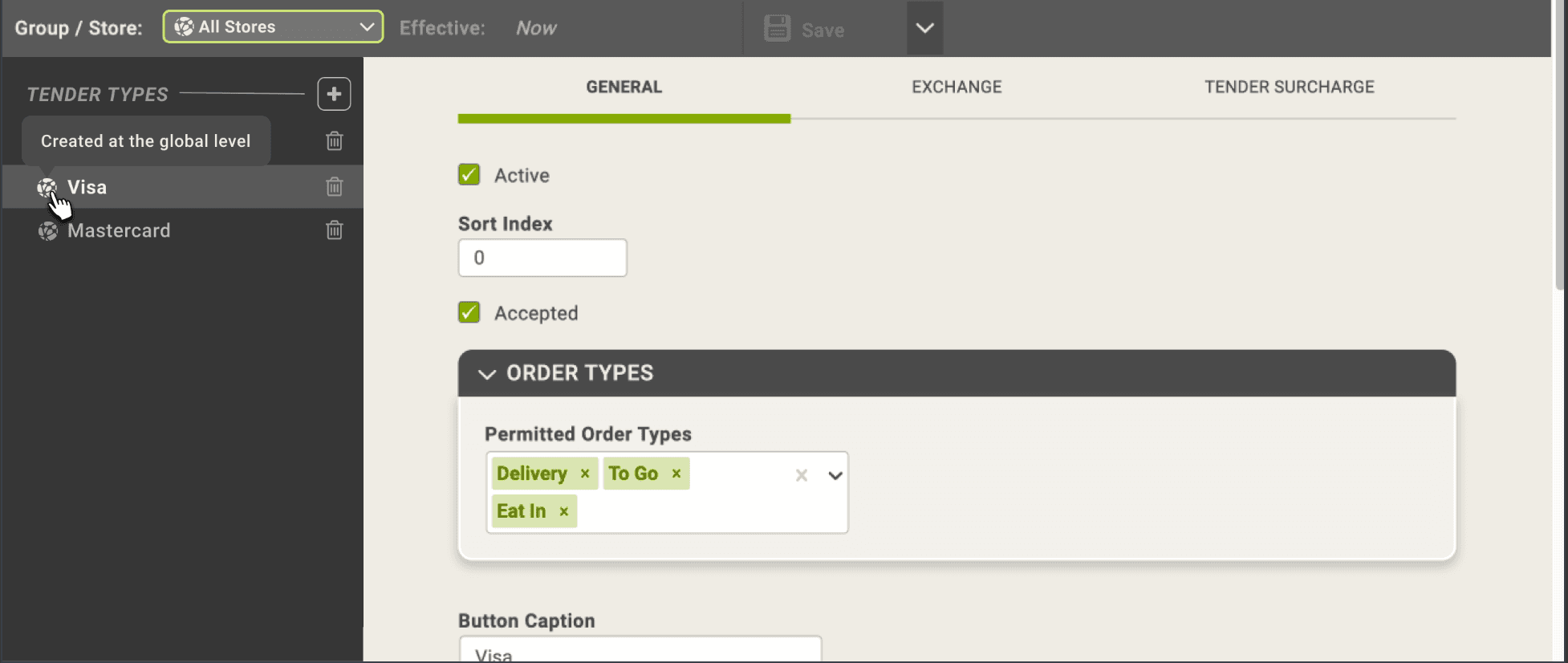
When I picked the problem back up in 2024, I gave each level its own icon and colour, and used the pair everywhere:
- All Stores: a globe, in green
- Store group: a hierarchy icon, in orange
- Single store: a storefront, in blue
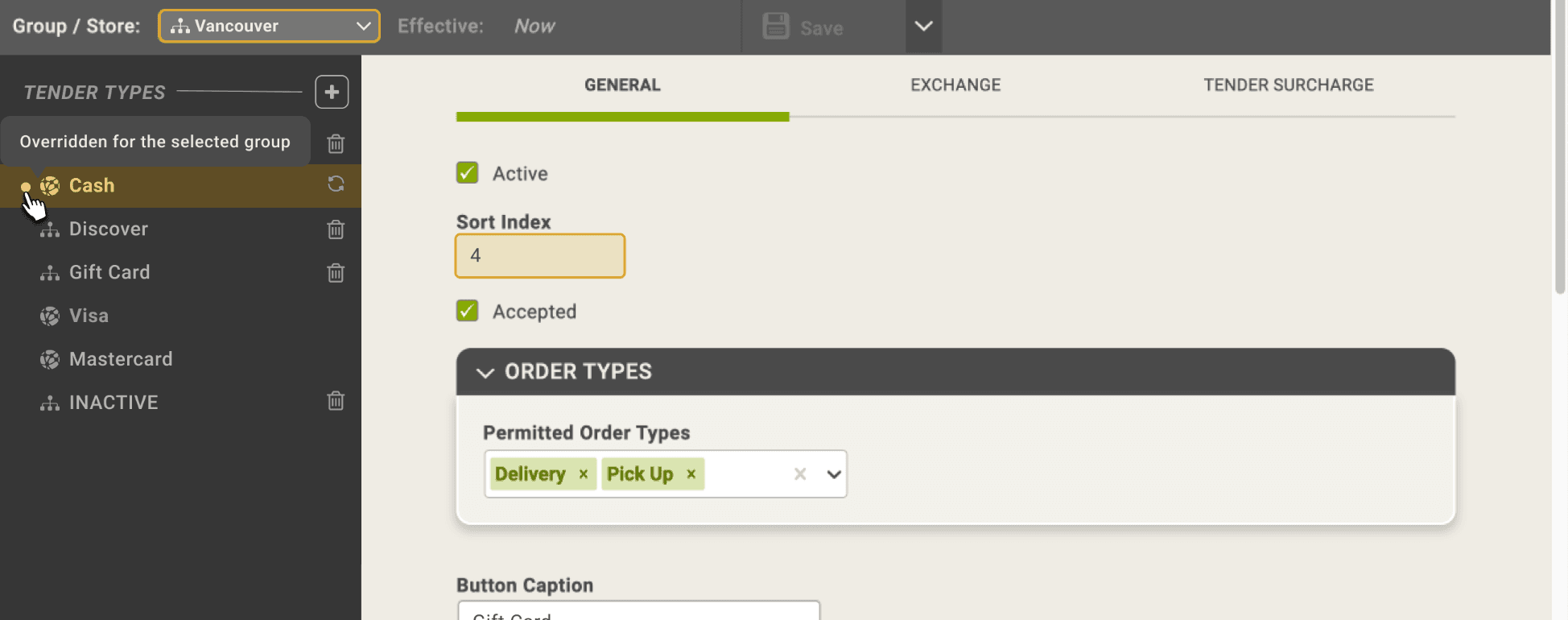
The icon beside each item in the sidebar shows the level it was created at, and hovering explains it ("Created at this group level").
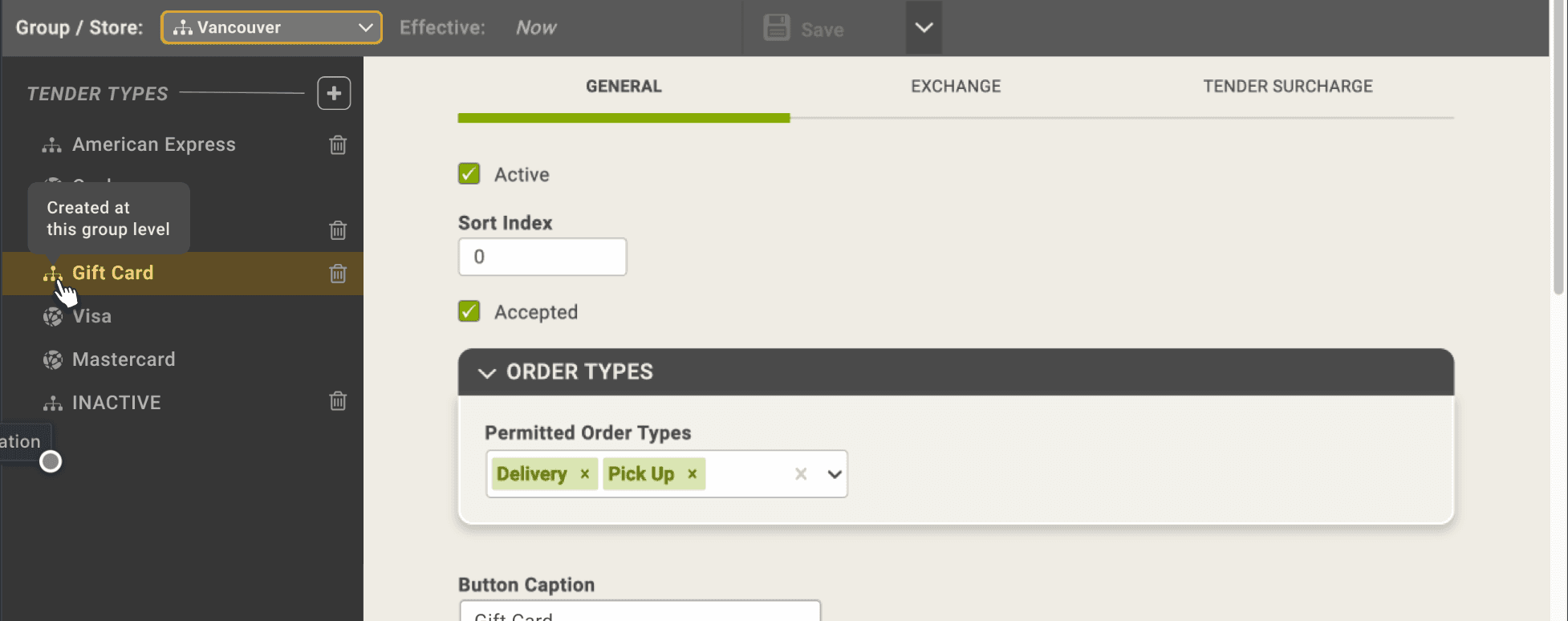
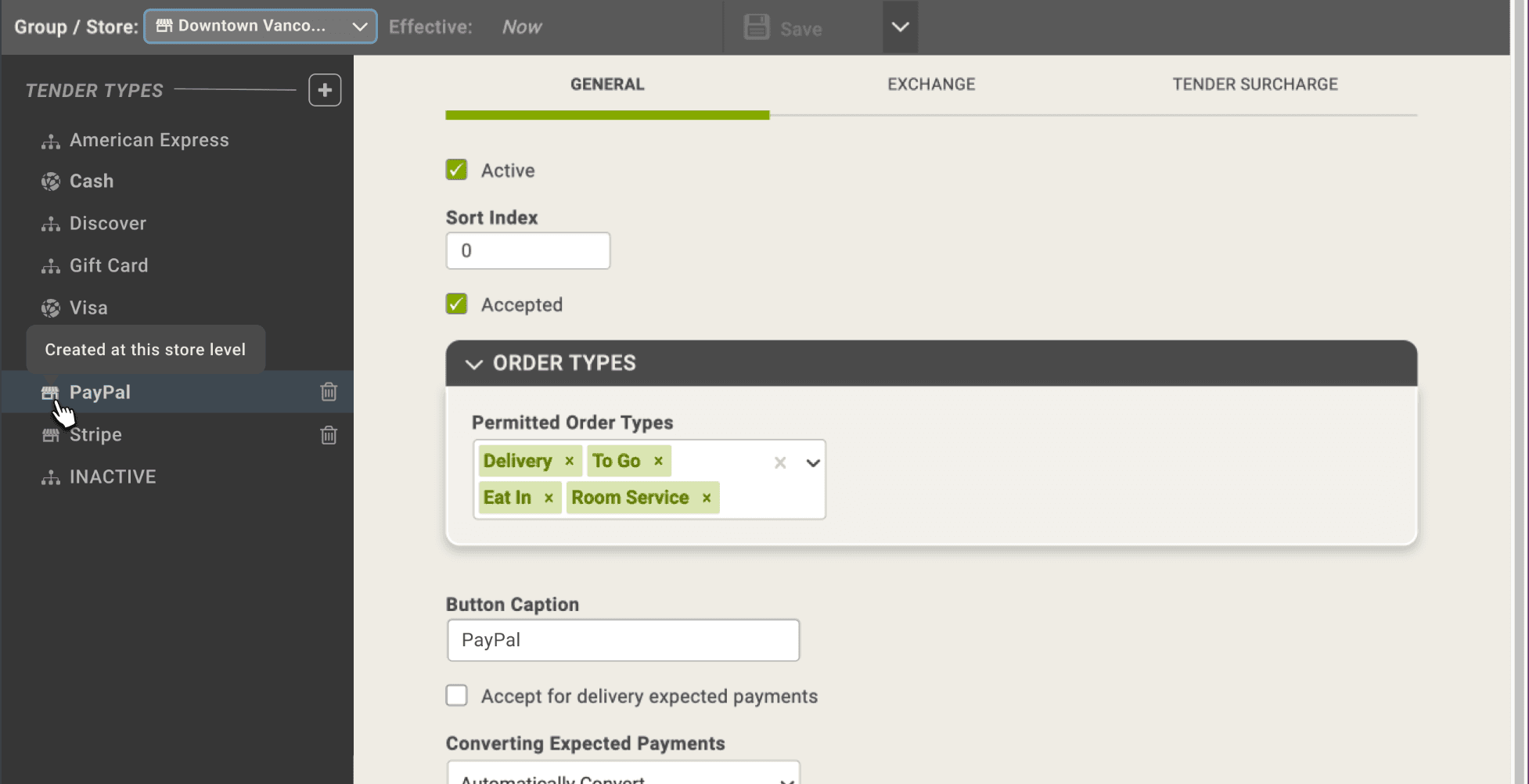
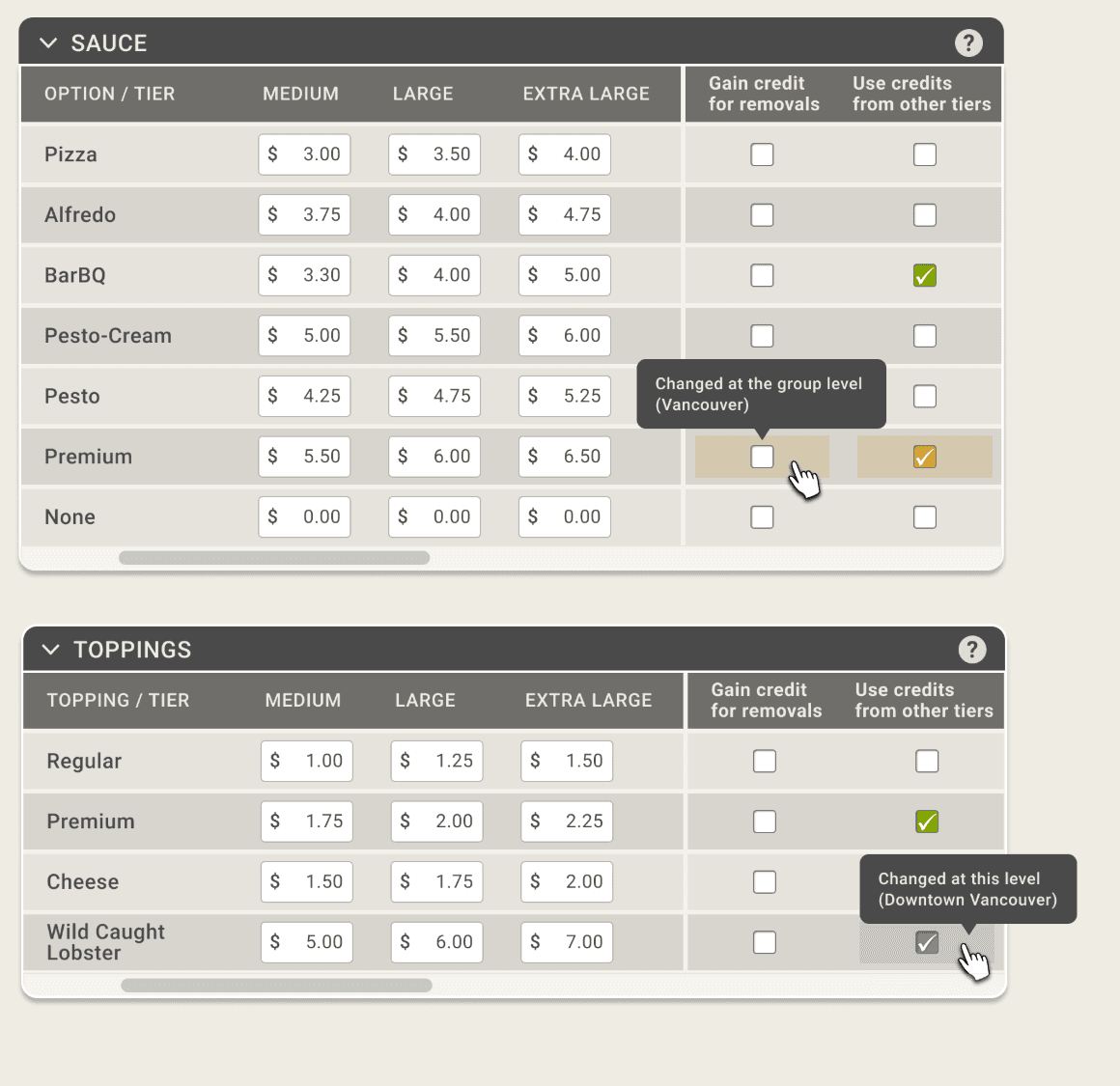
The same colours carry down to individual fields. Change a value for a group and the field turns orange. Change it for one store and it turns blue. Hovering says exactly where the change was made. Because every level has an icon and a colour, the level never depends on colour alone, which matters for people with colour blindness.
Spotting Overrides
The next question was how to show, at a glance, which items had been changed at the current level. A teammate suggested adding a second "override" icon next to each level icon. Two icons side by side on every row would have been busy and hard to scan. After seeing my version, the team dropped the idea.
My version used a small dot in the level's colour, with a tooltip like "Overridden for the selected group." You can scan down the list and see right away which items differ from the level above.
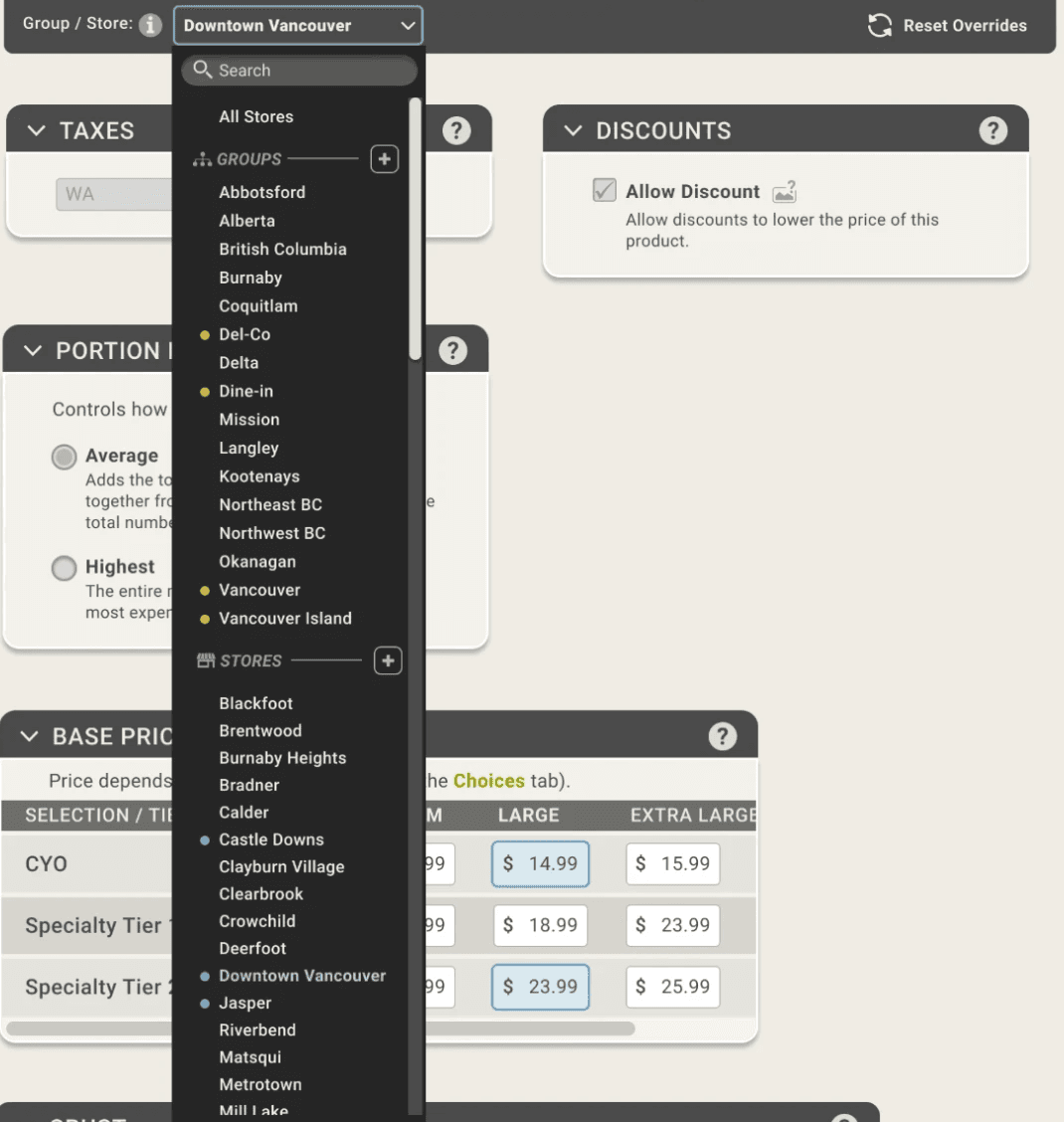
The same dot appears in the Group / Store picker, so before opening anything you can see which groups and stores have their own changes on that page.
Undoing an Override
Each overridden item can be reset to the value from the level above. We considered calling this "Revert Changes," but that could sound like it only undoes your most recent edit. "Reset Overrides" says what it really does: puts everything back to the level above.
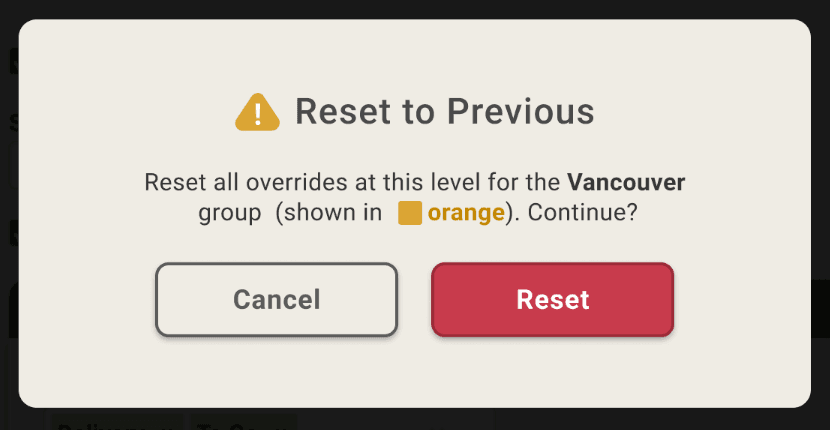
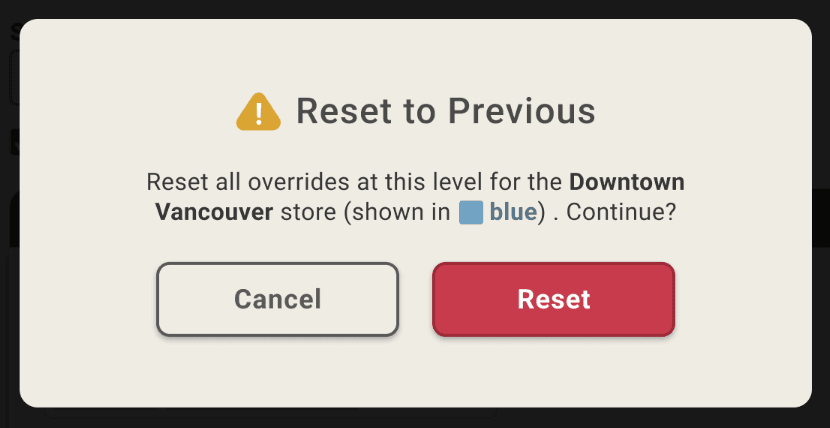
Because a reset can't be undone, a confirmation names exactly what will change: "Reset all overrides at this level for the Vancouver group (shown in orange)."
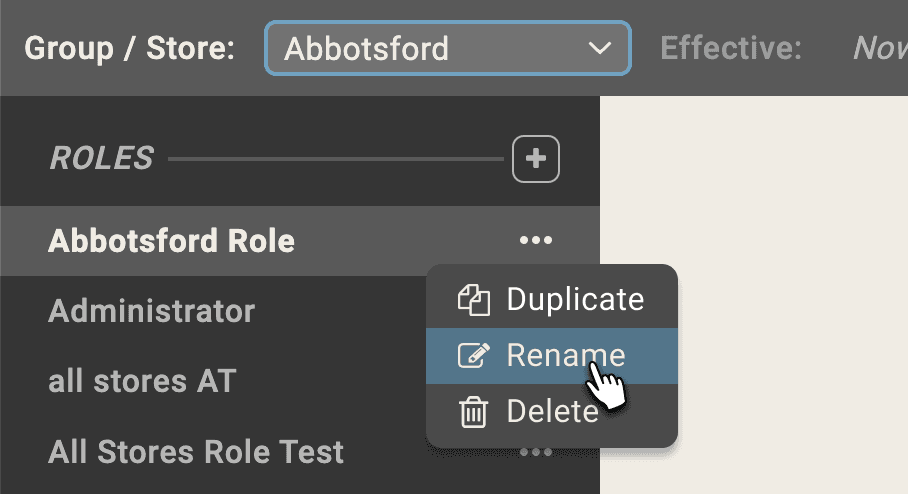
Where to put these actions took a few rounds. I tried the top right corner beside the page's other actions, and the sidebar beside each item's trash icon. In the end, each item's actions moved into a single ellipsis menu in the sidebar (Duplicate, Rename, Delete), which kept every row clean.
What Lower Levels Can't Change
Some settings only head office should touch. When a setting can't be changed at the current level, its value is still shown but greyed out. Store managers can see the standard without calling head office to ask, but they can't change it. I designed these disabled states for both the group and store levels.
You can also only delete an item at the level where it was created. A store can remove its own PayPal tender, but not Visa, which came from All Stores.
Who Changed It
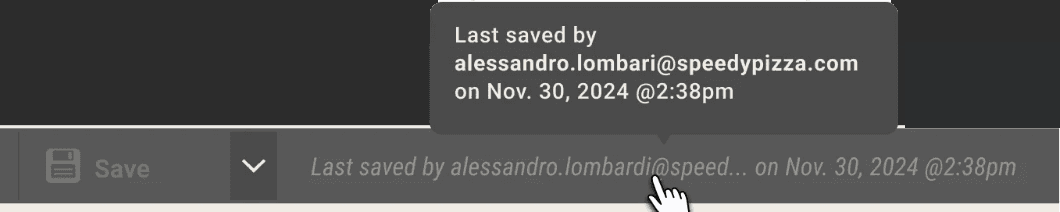
Once settings can be changed from several levels, the next question is who changed them. I added "Last saved by" with a name and time, right beside the Save button, where people are already looking when they make a change.
It's styled to be subtle, because most of the time nobody needs it. Support asked for a quick way to reach the person who made a change, so the name links to their email.
Roles and Permissions
Roles follow the same levels. A group or a single store can have its own roles, like the "Abbotsford Role" above, and each level can only change itself: a group can edit its own settings but not another group's, and a store can't touch another store.
I designed some of the role screens new. Others came over from the old desktop app as they were, to be improved later if customers need it.
On Smaller Screens
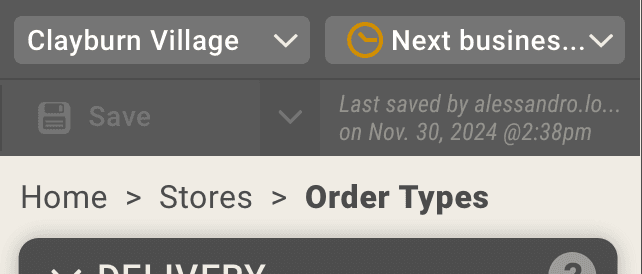
The same controls work on a phone. The Group / Store picker and the effective date sit side by side above the page, so owners can make a change from anywhere.
Outcome
The levels, icons, overrides and "Last saved by" all shipped in the cloud portal and became the pattern for its settings pages. Head offices can now change a setting once for every store, a group or one store, without remoting into anything.
"Last saved by" launched shortly before I went on leave, so I don't yet know how much support uses it.
Reflection
Less on screen can carry more. The team's first two ideas, a lock on every setting and a second icon for overrides, each added something to every row. One icon, one colour and one dot carried the same information. Finding that kind of simpler answer is a big part of what a designer brings to dense software.
Show what's locked, don't hide it. Greying out a setting tells a store what the standard is, without making them call head office to ask.
What I'd do differently: get closer to the requirements from the start. Much of the early discussion happened before design was involved, and understanding the "why" earlier would have saved time. I'd also build in a way to hear how it works in practice. As the only designer, most of my feedback came second-hand through support, QA and our business analyst. Next time I'd ask for a short check-in with a few head-office users after launch.